 Alberta
Login and security
Stake Alberta Login: Access The Account Securely
Username or email, password, done — and a 6-digit authenticator code or a passkey locks the door tighter. Lost access goes to accountrecovery-ab@stake.ca. Play requires age 18+ and physical presence in Alberta.
Checked on
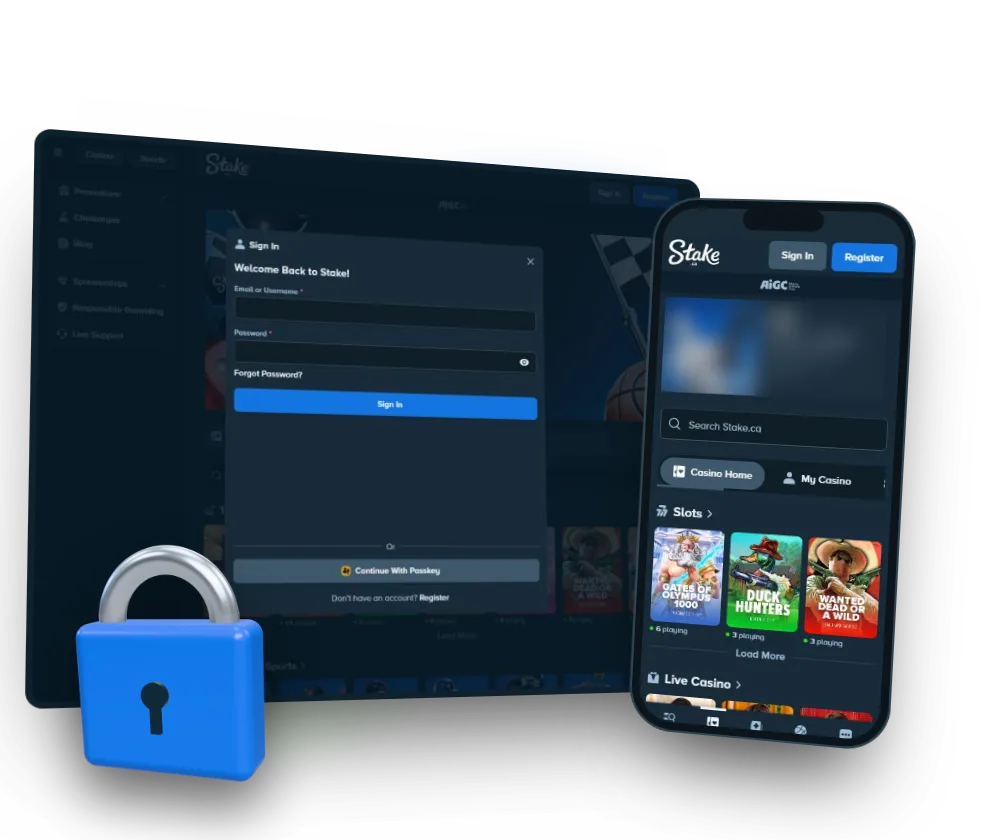
Logging In To Stake: Secure Access To The Profile
Access to the account takes just a few seconds through any web browser. The Stake login Alberta page protects the private profile with standard password security.
- Open the website in a mobile or desktop browser while in Alberta.
- Tap the Sign In button on the upper banner.
- Type the registered username or email address into the box.
- Enter the secret account password accurately, or choose Continue With Passkey.
- Enter the 6-digit authenticator code if 2FA is on.
- Allow location access when the browser asks.
- Confirm the details to view the sportsbook balance immediately.
Accounts are with Stake Canada Ltd. and open to players 18+ in Alberta. No account yet? Head to sign-up and KYC.
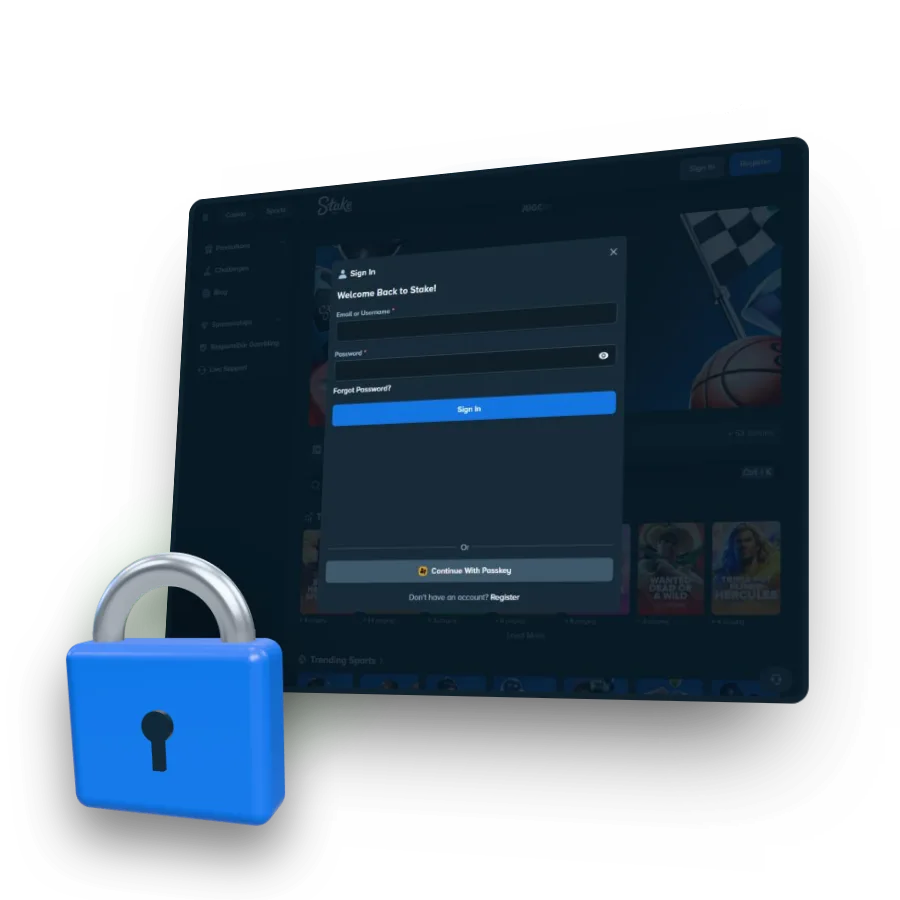
Two-Factor Authentication And Account Security
Extra account protection stops strangers from touching the cash balance. A fresh confirmation code from an authenticator app on the smartphone is needed each time someone tries to log into the profile.
- Open the profile icon in the upper corner of the screen.
- Head into Settings → Security to see the security options.
- Scan the shown square code with an authenticator on the phone, or type the text string into the app.
- Paste the temporary six numbers back into the site — the code changes every 30 seconds.
- Open the confirmation link sent by email.
From then on, every sign-in asks for the current code from the same app.
Passkeys add another layer: the phone's or computer's own lock — fingerprint, face or PIN — confirms each sign-in. They are added in Settings → Security, on one device or several.
| Parameter | Detail |
|---|---|
| Password | Set at registration; reset by email link |
| Two-factor code | 6 digits from an authenticator app, new every 30 seconds |
| Passkey | Fingerprint, face recognition or device PIN |
| Where to set | Settings → Security |
| Lost access | accountrecovery-ab@stake.ca |
Fixing Common Login And Sign-Up Issues
Small technical bugs sometimes interrupt account access. Location errors happen when phone or browser settings block location access inside Alberta boundaries.
The fix: turn on location services, allow location access for ab.stake.ca when the browser asks — or change a previously declined permission in the browser settings — and reload the page. Outside Alberta, sign-in may still work, but play won't; the background is on the AGLC registration page.
A forgotten password resets in minutes through the recovery link sent to the registered email box.
- Press Sign In and select Forgot Password?.
- Enter the registered email address.
- Open the reset link from the email.
- Set a new password and sign in.
Account recovery takes over where a password reset can't reach. These cases go to accountrecovery-ab@stake.ca.
- The phone with the authenticator app is lost or reset;
- The device holding the passkey is gone;
- The registered email address no longer works;
- Both the username and the email are forgotten.
Verification checks fail if uploaded paper photos look blurry or show expired dates. Remember that profiles from Stake sites outside Canada cannot open here under provincial rules. The bookmaker runs a separate website exclusively for players in Alberta. Helpful customer support agents answer chat messages around the clock to fix any stubborn profile trouble.
| Mistake | Consequence | Fix |
|---|---|---|
| Old 2FA code entered | Code gets rejected | Enter the current code — it changes every 30 seconds |
| Wrong email in the reset form | Reset link never arrives | Use the registration address and check spam |
| Authenticator phone lost | Sign-in stalls at the code step | Write to accountrecovery-ab@stake.ca |
| Location access blocked | Play is unavailable | Allow location access in the browser and reload the page |
| New account opened instead of recovery | Breaks the one-account rule | Use password reset or account recovery |
| Account shared with another person | Breaks the personal account rule | Keep the password and 2FA device private |
Anything else goes to 24/7 live chat or support-ab@stake.ca.
Closing A Stake Account Or Taking A Break
Personal account controls let anyone pause or end betting activity permanently. Temporary breaks freeze access for 24 hours up to 3 months without deleting saved details. Self-exclusion locks the profile through the AGLC Self-Exclusion Program across every registered iGaming site in the province. A regular shutdown ends the membership directly with the bookmaker.
- Open the profile icon in the upper navigation bar.
- Select the responsible gambling tab in account settings.
- Pick between a quick timeout (Break in Play) or permanent closure.
- Contact customer support by live chat or support-ab@stake.ca to request final balance settlement.
Staff members send any remaining cash balance to the verified account by Interac before locking the profile.
| Option | Duration | Where |
|---|---|---|
| Break in Play | 24 h, 1 week, 1 month, 2 months, 3 months | Responsible gambling settings in the account |
| Self-exclusion | 6 months, 1, 2 or 3 years | AGLC Self-Exclusion Program: selfexclusion.ca, 1-844-468-8034 |
| Account closure | Permanent | Live chat or support-ab@stake.ca |
If gambling stops being fun, GameSense Alberta (1-833-447-7523) and the AHS Addiction Helpline (1-866-332-2322, 24/7) can help. Limits and self-exclusion are covered in the responsible gambling tools section.
Frequently asked questions
Fast answers on signing in, security and closing an account.
How is a Stake password reset?
There is a simple password recovery button, Forgot Password?, in the login window. A password reset link lands in the registered mailbox within moments. By clicking on the link, the account holder can immediately create a new password without contacting customer support.
Can the username be used instead of the email?
Yes. Either one works with the password.
Where is two-factor authentication turned on?
In Settings → Security. Scan the QR code (or enter the text string) in an authenticator app, then confirm with the 6-digit code and an email link.
What is a passkey?
A sign-in by the device's fingerprint, face recognition or PIN — no password to type. It's added in Settings → Security.
What if the authenticator phone is lost?
Write to accountrecovery-ab@stake.ca to get access back.
How is the account closed?
Through live chat or support-ab@stake.ca, which settles the remaining balance first. For a shorter pause, Break in Play does the job.